
Metabase is an ambitious Open Source BI Tool. It is written in Java and can be deployed on various platforms. In this guide I will show you how to setup Metabase on Ubuntu. Because Metabase brings it’s own Jetty web server we will also setup Apache as a reverse proxy and enable SSL for a secure connection.
This setup was done on Ubuntu 18.04 because for these kind of server setups I always prefer a stable LTS release. Some package names might have changed in future releases but the overall steps should also be applicable for newer Ubuntu versions or even other Linux distros.
Choose a VPS host
I don’t recommend to install Metabase on a local computer. To use it to it’s full potential with background tasks and reporting features it should run on an always-on computer meaning a VPS host. There are numerous hosts out there and you can choose whichever you like.
If you’re unsure I would recommend DigitalOcean after testing various alternatives. They offer a reliable service with good performance for very affordable pricing. They also offer a network firewall which helps to restrict access to our Metabase server.
How to size the server?
The following steps were executed on a DigitalOcean Droplet with 1 CPU / 1 GB RAM and 25GB Disk space. At first glance that seems like a low-power box but it is absolutely sufficient for your first steps with Metabase. It runs really fast here. If you want to access the tool with lots of users simultaneously or process complex queries you can easily scale up your Droplet later.
What about the Marketplace?
You might have found Metabase in the DigitalOcean Marketplace. It looks like an easy one-click solution but I can tell you that I have already tested it. It is not a well compiled package and misses all the details. It comes with an outdated Metabase version running as root user which is a security concern. They also skipped the reverse proxy completely. So I highly recommend to follow the manual installation steps below.
Ubuntu Setup: Apache as Reverse Proxy
Metabase has it’s own internal Jetty web server. But this Java-based server should not be exposed directly to the internet from a security standpoint. So instead we will use an Apache as a reverse proxy. Let’s start with the installation:
Log in to your Ubuntu server and install Apache 2:
# apt-get install apache2
Code language: Shell Session (shell)
Enable necessary modules for reverse proxy and SSL:
# a2enmod proxy
# a2enmod proxy_http
# a2enmod ssl
Code language: Shell Session (shell)
Create a self-signed certificate:
# openssl req -x509 -nodes -days 3650 -newkey rsa:2048 -keyout /etc/ssl/private/apache-selfsigned.key -out /etc/ssl/certs/apache-selfsigned.crt
Code language: Shell Session (shell)
For the openssl command fill out the details as needed. For the Common Name use the IP address of your Ubuntu server.
Please note: A self-signed certificate brings a good level of transport security but today’s browsers will show a warning message because it’s not signed by a trusted certificate authority. This means: It’s good for testing purposes but for production use with a larger user base you should use Let’s Encrypt or a similar signed and trusted certificate instead.
Create VirtualHost Config
Now we need to setup an Apache virtual host which forwards all incoming requests on port 443 (secure https connection) to the Jetty web server of Metabase.
Create the file /etc/apache2/sites-available/metabase-ssl.conf with following config:
<VirtualHost *:443>
    ServerName 1.2.3.4

    ErrorLog ${APACHE_LOG_DIR}/error_metabase.log
    CustomLog ${APACHE_LOG_DIR}/access_metabase.log combined

    SSLEngine on
    SSLCertificateFile      /etc/ssl/certs/apache-selfsigned.crt
    SSLCertificateKeyFile /etc/ssl/private/apache-selfsigned.key

    ProxyPreserveHost On
    ProxyPass / http://localhost:3000/
    ProxyPassReverse / http:/localhost:3000/
</VirtualHost>
Code language: Apache (apache)
You just need to change ServerName 1.2.3.4 to your own server IP.
For a better convenience we will setup another virtual host config for port 80 (insecure connection). This will automatically redirect to the secure port we set up above.
Create /etc/apache2/sites-available/metabase.conf:
<VirtualHost *:80>
    Redirect / https://1.2.3.4/
</VirtualHost>
Code language: Apache (apache)
Again you need to change ServerName 1.2.3.4 to your own server IP.
Enable Configuration
Now we disable the default demo vhosts and enable the two virtual host configs we just set up. After that you must reload your Apache instance so the changes will take effect.
# a2dissite 000-default
# a2dissite default-ssl
# a2ensite metabase
# a2ensite metabase-ssl

# systemctl reload apache2
Code language: Shell Session (shell)
Metabase Server Setup
In the steps above we have configured the reverse proxy. Now it’s time to get Metabase up and running.
Install packages
Metabase requires at least OpenJDK 8 so let’s install the newer version OpenJDK 11. The second package haveged is not really necessary but I experienced a bug where Metabase would hang during startup with a message of failed entropy mechanism. My research showed this bug is already known but not fully addressed yet. The additional package installs an entropy daemon as a workaround so Metabase starts up smoothly.
# apt-get install openjdk-11-jre-headless
# apt-get install haveged
Code language: Shell Session (shell)
Download Metabase
Go to https://www.metabase.com/start/oss/jar.html and copy the download link for the actual version. Use this link for the following wget command:
# mkdir /opt/metabase
# cd /opt/metabase/
# wget http://downloads.metabase.com/vX.Y.Z/metabase.jar
Code language: Shell Session (shell)
Create an Unprivileged User
Metabase should not run as root user so we add a user and group called metabase:
# groupadd -r metabase
# useradd -r -s /bin/false -g metabase metabase
# chown -R metabase:metabase /opt/metabase/
Code language: Shell Session (shell)
Create a Metabase Service
Metabase should start up automatically when booting our Ubuntu server. So we will create a Systemd service script in the file /etc/systemd/system/metabase.service:
[Unit]
Description=Metabase server
After=syslog.target
After=network.target

[Service]
WorkingDirectory=/opt/metabase/
ExecStart=/usr/bin/java -jar /opt/metabase/metabase.jar
EnvironmentFile=/opt/metabase/metabase.env
User=metabase
Type=simple
StandardOutput=syslog
StandardError=syslog
SyslogIdentifier=metabase
SuccessExitStatus=143
TimeoutStopSec=120
Restart=always

[Install]
WantedBy=multi-user.target
Code language: plaintext (plaintext)
As you can see we use the configured paths and metabase user here.
Setup Environment Variables
The service script above also contains an EnvironmentFile config. Here you can set various options for your Metabase instance. But first we need to create this env file:
# touch /opt/metabase/metabase.env
# chmod 640 /opt/metabase/metabase.env
Code language: Shell Session (shell)
After that edit /opt/metabase/metabase.env file and insert the following variables. With this config the internal Jetty web server will listen on localhost on port 3000 according to our previous reverse proxy setup.
MB_JETTY_PORT=3000
MB_JETTY_HOST=localhost

MB_DB_CONNECTION_URI=mysql://user:pass@host:3306/database?ssl-mode=REQUIRED
Code language: plaintext (plaintext)
If you skip the MB_DB_CONNECTION_URI parameter Metabase will create a file-based H2 database for it’s application data. You could choose this route for a very first test but for production use it’s recommended to store the application data in a real database.
So for example you can create an empty MySQL db on your database cluster and put user, password, host and dbname in the connection string. It’s highly recommended to use the ssl-mode parameter here so the connection between Metabase and it’s application database is encrypted.
Register Service
In the last step we need to register the newly created Systemd service. I recommend to first start it and check with the status command if there are any errors. If everything works smoothly we can execute the enable command so Metabase starts automatically after a reboot.
# systemctl daemon-reload
# systemctl start metabase.service
# systemctl status metabase.service

# systemctl enable metabase.service
Code language: Shell Session (shell)
Metabase Browser Setup
Now we can check if all previous steps are working as expected. Open your web browser and go to https://1.2.3.4 (insert the actual IP of your VPS here). Then you should be greeted by the following screen.

Click the button and follow the setup wizard.
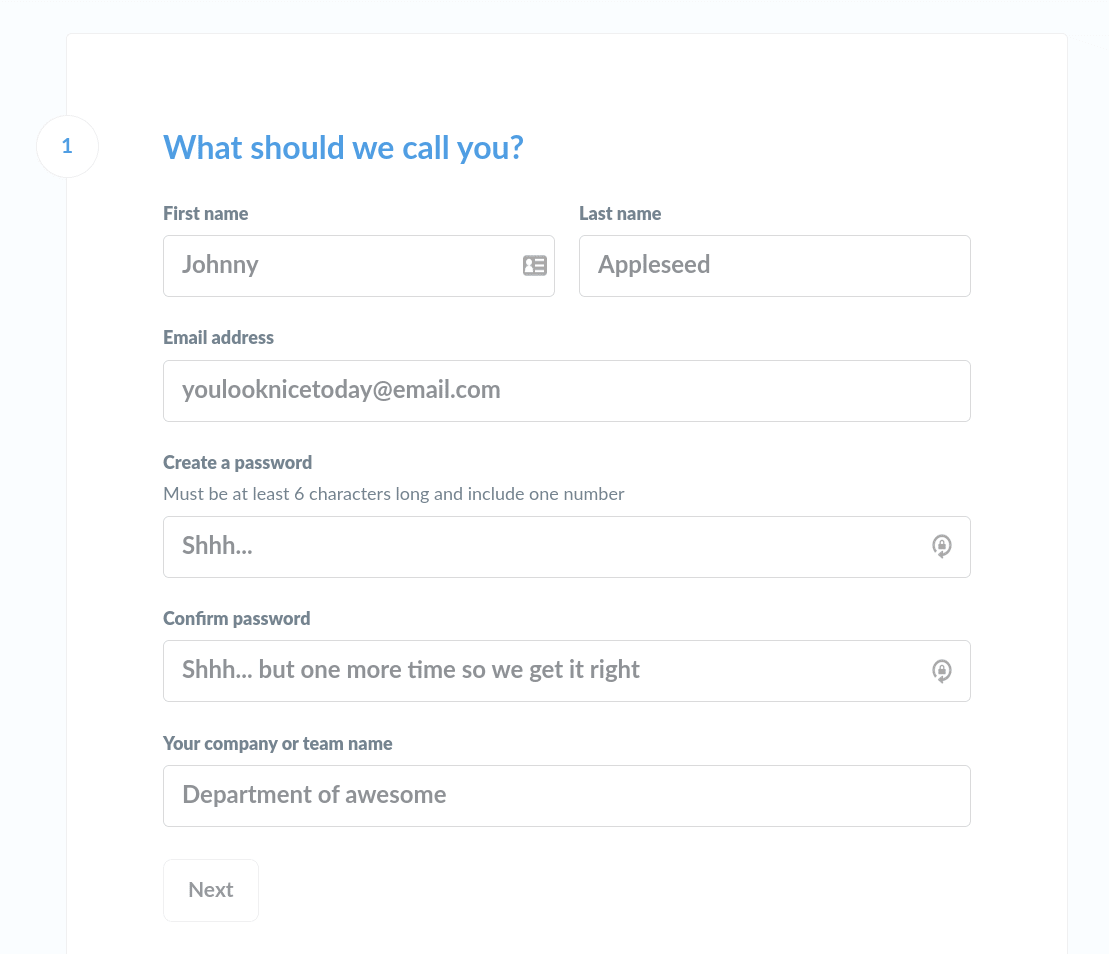
Create Admin Account
In step 1 you need to enter your name, email and password. With this info an admin account for your Metabase instance is created. Some people were unsure where this data is actually sent. But you don’t have to worry. This account is just created on your Metabase server. The entered information is stored in your configured application database.
Configure Data Sources
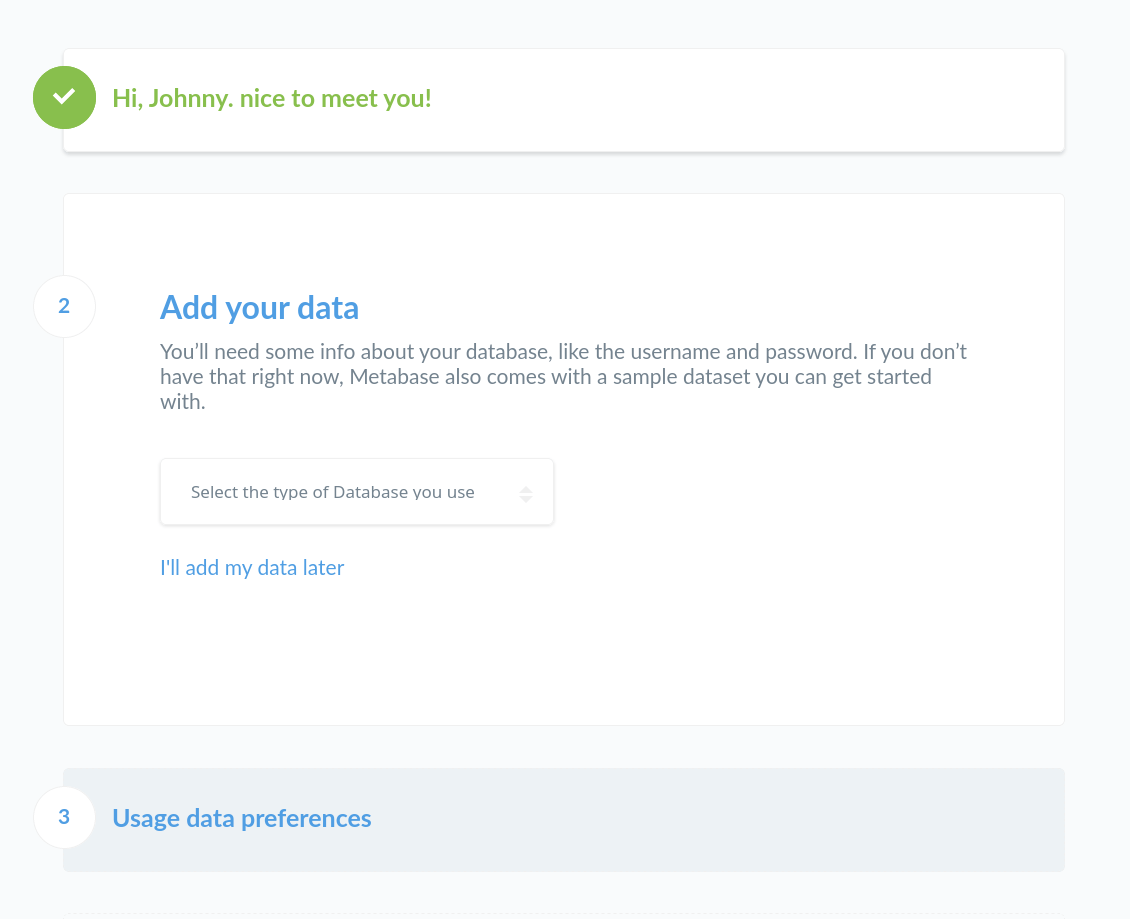
In step 2 you have the ability to configure your first data source you want to explore with Metabase. But I recommend to finish the initial setup first and add your data sources later. To do so just click on the blue link I’ll add my data later.
Usage Data Preferences
In the last setup step you can decide if you allow Metabase to collect usage events on your instance. There is no right or wrong here so it’s really up to you.

Metabase Dashboard
After finishing the setup wizard Metabase will wellcome you on the main dashboard. I recommend you to play around a little bit with the interface. There is also some sample data available so you can see how data sources can be explored in a graphical way.

To connect your own data sources for exploration and visualization I recommend you to check out the official administration guide and user guide.
Conclusion
Installing Metabase on Ubuntu server is not that difficult. With this detailed guide you are able to run a powerful business intelligence software on a cheap virtual server. This setup allows you to dive into your business data and create impressive visualizations.